How to get free topographic map into Garmin eTrex 20
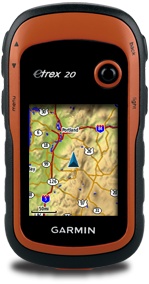
If you have not got a street map and you are interested in getting the street map for your Garmin eTrex 20 device, please refer to How to get free routable maps into Garmin eTrex 20.
If you are interested to get street maps for Malaysia and Singapore, please refer to How to install malfreemaps into Garmin eTrex 20. Malfreemaps provides a very comprehensive map of Malaysia and Singapore, more comprehensive map than the free OpenStreetMaps.
Note: The steps below only applicable for Windows OS and make sure you have Java installed into your system.
Steps
- Download OSM2GarminTopo. This is a zip package that i have packed with mkgmap, srtm2osm and my custom batch script to automate the creation of the topographic map layer.
- Extract the content of the zip file out.
- Goto http://touren.mospace.de/kachel.html, select an area using one of the techniques described there, tick the "Elevation contours" checkbox, and hit submit.
- You will get a list of download links for *.img.gz files and a list of srtm2osm command lines at the bottom part that looks something like this:
srtm2osm -bounds1 47 8 48 9 -o 53273978.osm
srtm2osm -bounds1 48 8 49 9 -o 53273979.osm
... - Open my custom batch script (BuildTopo.bat) with notepad or any plain text editor.
- Copy the list of the srtm2osm command lines from the webpage and paste it into my custom batch script (BuildTopo.bat). Paste it under these lines:
rem paste the list of srtm2osm commands under the line below
rem add % at the from and back of srtm2osm for every line
rem example %srtm2osm% -bounds1 4 99 5 100 -o 53290315.osm
rem -------------------------------------------------------- - Add "%" sign at the front and back of the "srtm2osm" for every line.
- Add a map description of your topographic map to the line:
set MAP_DESCRIPTION= - Save the batch file and close your text editor.
- Open a command line window and cd to the OSM2GarminTopo folder.
- Type BuildTopo.bat and hit enter to start the creation of the topographic map.
- Rename the generated gmapsupp.img map to any name that is meaningful to you.
- Transfer the IMG file into your Garmin eTrex 20 device.
You should be able to enable or disable the topographic map from the map setup of the Garmin eTrex 20 device. The name of the map stated in the setup will show the map description you have set in step 8.
References or Credits:
- http://wiki.openstreetmap.org/wiki/Topographic_maps_for_garmin_devices
- http://touren.mospace.de/kachel.html
- http://www.mkgmap.org.uk/
- http://wiki.openstreetmap.org/wiki/Srtm2Osm


Reading you post is like reading greek to me. I am new to handheld gps units. I am computer semi literate. I would be nice to see step by step instructions....kinda like DOS for dummies.
ReplyDeleteJohn
Hi John, thank you for your feedback. I agree this post will be incomprehensible for those who never worked with scripts and command lines. Could you point me which steps are not clear so that i can elaborate more? I can help you to generate the topographic map for you if you are urgent to them into your Garmin device.
DeleteHi,
ReplyDeleteI managed to get black contour lines with ascent details. I am trying to install OS maps on to etrex 20. Do you know how to do that ? I have heard that etrex 20 can use pdf maps but I dont have any clue how to do that. Any advice ? Thanks
Hi, glad you manage to get the contour lines. For OSM maps, refer to this post.
Deletehttp://almost-a-technocrat.blogspot.com/2012/04/how-to-get-free-routable-maps-into.html
Basically you are using the contours to overlap on top of the street map.
Got your tips.. Perfect!
ReplyDeleteWorks for mine 620s :)
Fisol, good to hear it works for Garmin 620s!
DeleteWow, this is great, thanks. Is there any way to do the same thing with ASTER maps? (outside US they have higher resolution; 30m rather than 90m)?
ReplyDeleteHi, I am sorry, I'm afraid that I'm not familiar with ASTER maps.
DeleteThanks for this posting. I'm getting stuck on Step 5. How do you open the custom batch script, I can't locate this file. For step 10, I also don't know how to open a command line window.
ReplyDeleteThanks again.
Hello BretnLyss, I'm afraid you will need to learn how to work with batch script on your own. Perhaps you can let me know which area you want the topo map and i can find some time to convert it for you.
Deletecan you make up a download topo map for new zealand for my etrex20 ,
ReplyDeletei can only seem to load a small area at a time ,if the area is to big it says to large and cant display, but the other topo map on a micro sdcard has the whole of nz on it and flows over to any where you travel with out having to remove one area from the custom folder and replace with new area.
can you make up a download topo map for new zealand for my etrex20 ,
ReplyDeletei can only seem to load a small area at a time ,if the area is to big it says to large and cant display, but the other topo map on a micro sdcard has the whole of nz on it and flows over to any where you travel with out having to remove one area from the custom folder and replace with new area.
Everything goes well until any attempt to run Srtm20sm from the batch file generates an error box stating "The application filed to initialize properly (0xc0000135)". I'm running WinXP on a Pentium 4 (Dell laptop). Any suggestions?
ReplyDeleteThanks